

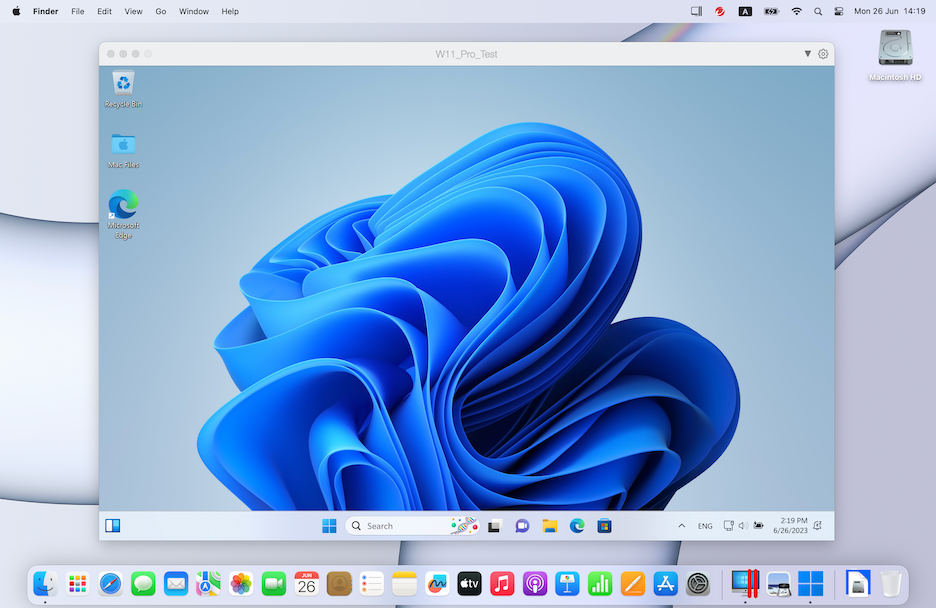
If you use a Mac with an Apple Silicon chip (M1, M2, or M3) but still need access to Windows-only software, Parallels Desktop is your best solution. It lets you run Windows 11 ARM side-by-side with macOS—no rebooting, no complicated dual-boot setups. This 2025 guide walks you through everything: installation, activation, optimization, and how to make Windows apps run smoothly on your Mac.
Why Use Parallels Desktop on M1/M2 Macs
Parallels Desktop is designed to work seamlessly with Apple Silicon. It uses virtualization to create a lightweight Windows environment that feels native, not emulated. Here’s why it’s ideal:
- Run Windows apps directly on macOS without switching systems.
- Full hardware optimization for Apple Silicon (including GPU acceleration).
- Quick setup—no ISO hunting or complex drivers.
- Integration features like shared clipboard, drag-and-drop files, and Coherence Mode (where Windows apps appear as Mac apps).
Unlike Boot Camp, which is no longer supported on Apple Silicon, Parallels gives you a fully functional Windows experience with minimal setup time.
Step 1: Check System Requirements
Before installing, make sure your Mac meets these requirements:
- Chip: Apple M1, M2, or M3 processor
- RAM: Minimum 8 GB (16 GB recommended for heavy workloads)
- Storage: At least 40 GB of free space
- macOS: Ventura (13), Sonoma (14), or newer
- Internet connection: Required to download Windows 11 ARM and activate Parallels
Step 2: Download and Install Parallels Desktop
- Go to parallels.com and click Download Free Trial or Buy Now.
- Open the downloaded
.dmgfile and drag Parallels Desktop into your Applications folder. - Launch Parallels, then grant necessary permissions (security & privacy settings).
- Once opened, Parallels will prompt you to either install Windows 11 automatically or import an existing virtual machine.
Tip: Parallels automatically detects your Apple Silicon Mac and downloads the correct Windows 11 ARM edition directly from Microsoft—no manual ISO needed.
Step 3: Install Windows 11 for ARM
- When prompted, choose Install Windows 11.
- Parallels will download the official Windows 11 ARM image from Microsoft’s servers.
- Wait for the installation process (typically 10–20 minutes).
- Once installed, Windows will boot automatically within a Parallels window.
At this point, you can log in with your Microsoft account and start setting up Windows like you would on a PC.
Step 4: Activate and Optimize Your Setup
After installation, you’ll want to activate Windows and Parallels for full performance.
Activate Windows
- Open Settings → System → Activation.
- Click Activate and enter your Windows 11 product key (if you have one).
- You can use Windows without activation, but personalization options will be limited.
Activate Parallels
If you’re using the trial version, log in with your Parallels account or license key to unlock all features.
Optimize for Performance
- In Parallels menu bar, go to Actions → Configure → Hardware → CPU & Memory.
- Allocate 4–6 CPU cores and at least 8 GB RAM for smooth multitasking.
- Under Graphics, enable “Best for Games” if you use GPU-heavy applications.
- Enable Automatic Resource Management for balanced performance.
Step 5: Install Parallels Tools
Once Windows is running, Parallels will automatically prompt you to install Parallels Tools—a critical package for smooth integration.
- Click Install Parallels Tools inside Windows.
- Restart Windows after installation completes.
- Now you’ll enjoy:
- Shared clipboard (copy-paste between systems)
- File drag-and-drop between macOS and Windows
- Better display scaling and mouse handling
- Coherence Mode (Windows apps running like native Mac apps)
Step 6: Use Coherence Mode for Seamless Integration
One of the best features of Parallels Desktop is Coherence Mode. It hides the Windows desktop, allowing Windows apps to appear directly in your macOS environment.
- To enable: Click View → Enter Coherence in the Parallels menu bar.
- To disable: Click the Windows icon in the Dock and select “Exit Coherence.”
This mode is perfect for running individual Windows applications—like Microsoft Access, Visual Studio, or a proprietary work tool—without switching interfaces.
Step 7: Share Files Between macOS and Windows
Parallels automatically mounts your Mac folders inside Windows, so sharing files is effortless.
- Access Mac files in Windows via This PC → Network → Mac Files.
- Save Windows documents directly into macOS folders.
- Enable or disable shared folders under Configuration → Options → Sharing.
For sensitive projects, you can toggle Isolated Mode, which keeps Windows completely separate from macOS for security.
Step 8: Manage Network, USB, and External Devices
Parallels lets you connect USB drives, external SSDs, webcams, and even printers directly to Windows.
- Plug in the device → choose Connect to Windows when prompted.
- For network management, use Shared Network (default) or Bridged Mode if you want your VM to have its own IP address.
Step 9: Snapshots and Backups
Before making big changes inside your Windows VM, take a snapshot for quick recovery.
- Go to Actions → Take Snapshot.
- Name it (e.g., “Before Driver Install”).
- You can revert anytime via Actions → Revert to Snapshot.
For regular backups, use Time Machine or external drives. Parallels VM files are stored in ~/Parallels/.
Step 10: Performance and Maintenance Tips
- Keep Parallels updated through Check for Updates—each release improves performance and Windows compatibility.
- Occasionally run Windows Disk Cleanup and Defragmentation (if applicable).
- Disable startup apps inside Windows for faster boot.
- If you’re low on space, move your VM to an external SSD via File → Move.
Troubleshooting Common Issues
- Black screen after boot: Restart both macOS and Parallels.
- Windows won’t activate: Recheck your internet connection and Microsoft account.
- Lag or stutter: Allocate more RAM or enable hardware acceleration.
- No sound or display scaling issues: Reinstall Parallels Tools.
Final Thoughts
Parallels Desktop makes running Windows on M1 and M2 Macs incredibly smooth in 2025. It’s ideal for students, developers, and professionals who need specific Windows software but love the speed and design of macOS. With proper setup, optimization, and backups, you can enjoy the best of both worlds—Mac reliability and Windows flexibility—without compromise.
FAQ
Can I run Windows 11 Pro or Enterprise on M1 Macs?
Yes. Parallels supports all ARM editions of Windows 11, including Pro and Enterprise.
Does Parallels work offline?
Yes. After setup, you can use Windows apps without an internet connection.
Can I play games through Parallels?
Light to moderate games work fine. For heavy AAA titles, native macOS or cloud gaming is better.
Do I need a Windows license key?
You can run Windows without activation, but personalization features and some settings will be limited.
Will it slow down my Mac?
Not significantly if you allocate reasonable resources. For best results, close unused apps before launching Parallels.